· 123 ToDo Team · Tutorials · 6 min read
Getting Started with 123 To Do: The Simple 3-Minute Beginner's Guide
New to 123 To Do? Here are the absolute basics to get organized today—how the 1-2-3 rule works, why your data is 100% private and automatically saved, and how to put the app on your phone in one tap.
Welcome: Take a Deep Breath, You’re Safe Here
If you’ve just arrived at 123 To Do—perhaps recommended by a friend or found while searching for a simpler way to manage your day—welcome.
Before we do anything else, here is the most important thing you need to know:
You do not need to learn complicated software, watch hours of tutorials, or set up 50 folders just to organize your day. 123 To Do is built to get you organized in under 3 minutes.
Traditional to-do apps (like Todoist, Notion, or Asana) often feel like a second job. They overwhelm you with tags, labels, sub-folders, and notifications.
123 To Do takes the opposite approach. It eliminates decision fatigue and gives your brain instant calm.
Here are the absolute basics to get you up and running right now.
1. Alleviating Your Biggest Fears (Read This First)
When people try a new tool in their web browser, three immediate anxieties usually pop up. Let’s put all three to rest right away:
Fear 1: “Will I lose my tasks if I close my browser or turn off my phone?”
No. Absolutely not.
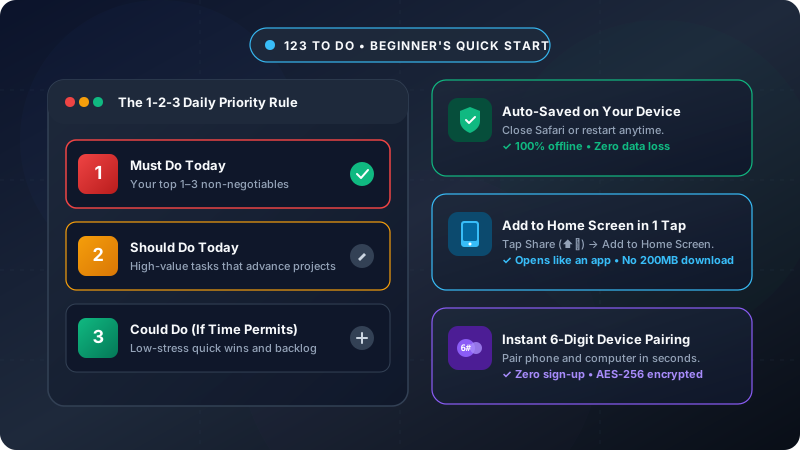
Every single word you type and every task you check off is written immediately and permanently to your device’s local physical memory.
- You can close Safari, Chrome, or Edge.
- You can restart your computer or restart your phone.
- You can turn off your Wi-Fi completely.
When you open 123 To Do again, your list will be right where you left it. In addition, 123 To Do automatically creates silent 24-hour backup snapshots in the background, so your work is safe from accidental browser cleanups.
Fear 2: “Do I need to create an account, give an email, or remember a password?”
No. There is zero sign-up required.
- No email verification.
- No passwords to forget.
- No marketing newsletters clogging your inbox.
- No credit cards or “14-day trial” paywalls.
The app opens instantly, ready to work for you from your very first click.
Fear 3: “Is my personal life private, or are servers reading my notes?”
100% Private. Your tasks and notes are stored strictly on your own hardware. Unlike big-tech tools that scan your data to target ads or train AI models, 123 To Do does not store your private tasks on central servers. Even if you choose to sync between devices, your data is military-grade encrypted (AES-256-GCM) on your device before it ever touches the internet. Only you possess the keys.
2. The Core 1-2-3 Rule (The Only Rule You Need)
The magic of 123 To Do is its unique, delightfully simple prioritization system.
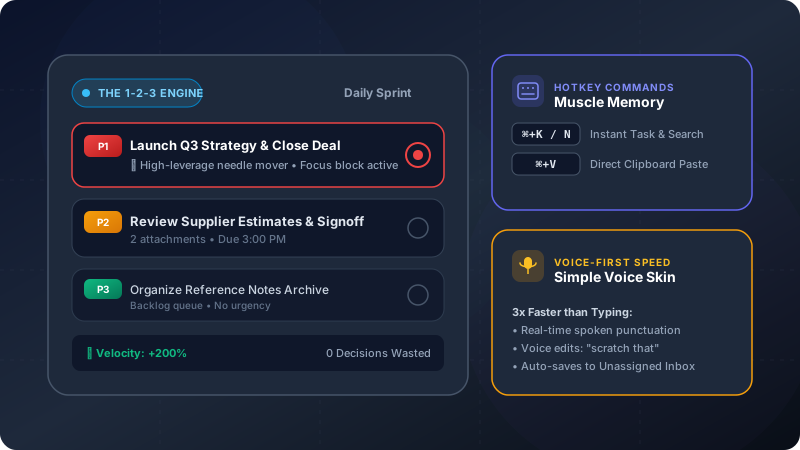
Instead of an endless, intimidating list of 40 unranked items, your day is organized into three clear priority tiers:
┌──────────────────────────────────────────────────────────┐
│  1. MUST DO TODAY      (Top 1–3 non-negotiables)         │
│  2. SHOULD DO TODAY    (High-value progress & follow-ups)│
│  3. COULD DO TODAY     (Quick wins & backlog bonuses)    │
└──────────────────────────────────────────────────────────┘
1 = Must Do Today (Non-Negotiable)
- What belongs here: The 1 to 3 things that must happen today. If you only accomplish these items, your day is still a success.
- Examples: “Pay rent invoice,” “Submit client proposal by 3pm,” “Take prescription medication.”
- The rule: Keep this section small. When everything is urgent, nothing is urgent.
2 = Should Do Today (Important Progress)
- What belongs here: Important tasks that move your projects forward, but wouldn’t cause a crisis if postponed by 24 hours.
- Examples: “Draft weekly team update,” “Book dentist appointment,” “Review quarterly budget.”
3 = Could Do Today (Bonus / Quick Wins)
- What belongs here: Low-stress quick wins, optional research, or tasks you’d like to get to if you have leftover energy.
- Examples: “Organize desktop downloads,” “Read book chapter,” “Tidy home office desk.”
3. The 3 Basic Actions (Try Them Now!)
When you open 123 To Do, you only need to know 3 gestures:
- Complete a task (✓): Tap the checkmark button on the right of any task card. The task will strike through and celebrate your progress!
- Edit a task: Tap directly on any task’s text. You can change the title, add detailed notes, adjust its priority, or attach a photo.
- Add a task (+): Tap the prominent + button at the top of the screen. Type what you need to do, pick the priority (Must Should or Could), and tap Save!
That’s literally all you need to organize today’s workday.
4. How to Put 123 To Do on Your Phone (Like a Native App)
Most people assume an “app” must be downloaded from the Apple App Store or Google Play Store.
123 To Do is an Instant Web App. That means it doesn’t waste 200MB of your phone’s storage, doesn’t drain battery with background tracking, and opens in 1 second.
You can add it directly to your phone’s home screen so it opens full-screen in one tap, just like any other app:
On iPhone & iPad (Safari):
- Open app.123todo.com in Safari.
- Tap the Share icon at the bottom of the screen (the square with the arrow pointing up: ⬆️).
- Scroll down the menu and tap “Add to Home Screen”.
- Tap “Add” in the top right corner.
- Done! The 123 To Do icon now lives on your home screen right alongside your other apps.
On Android (Chrome):
- Open app.123todo.com in Chrome.
- Tap the three dots menu (⋮) in the top right corner.
- Tap “Install app” or “Add to Home screen”.
- Tap “Install”.
- Done! It now appears in your app drawer and home screen.
On Mac & Windows PC (Chrome, Edge, Safari):
- In Chrome or Edge, click the little Install icon (computer with down arrow ⬇️) on the right side of the address bar.
- In Mac Safari (macOS Sonoma+), click File ➔ Add to Dock.
5. Syncing Across Devices (When You’re Ready)
Want to see your tasks on both your laptop at work and your phone on the go?
You don’t need to create an account with a password. 123 To Do uses Zero-Knowledge Device Pairing:
- In the app on your computer, open Settings (⚙️) ➔ Cloud Sync.
- Select Cloud Sync (Zero-Knowledge) or Google Drive Sync.
- You will receive a secure 6-digit pairing code.
- On your phone, open Settings ➔ Cloud Sync, enter the 6-digit code, and tap Connect.
- Your devices are now paired in real-time! All data is end-to-end encrypted with AES-256-GCM before leaving your phone, so nobody—not even our servers—can ever see your tasks.
Ready for More?
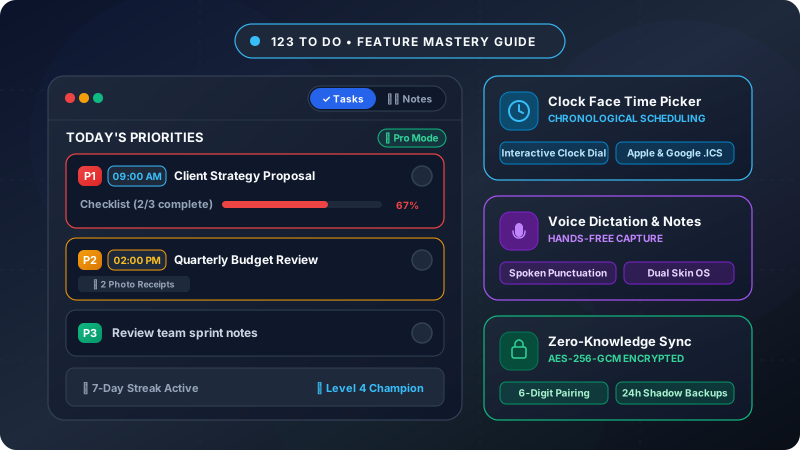
Once you’ve spent a day or two enjoying the calm of the 1-2-3 rule, you might want to explore powerful optional tools like Voice Dictation, Photo Attachments, Clock-Face Scheduling, and Color-Coded Projects.
👉 Check out our in-depth companion guide:
Mastering 123 To Do: The Complete Feature Guide (From Basics to Power User)
For now, take it easy:
- Open 123 To Do.
- Write down your 1 Must Do for today.
- Enjoy the calm satisfaction of getting it done!