· 123 ToDo Team · Guides · 4 min read
Why Switching to 123 ToDo is the Ultimate Upgrade (60-Second Migration Guide)
Discover why more and more people are switching to 123 ToDo for zero-knowledge privacy, server backups, 100% offline PWA freedom, and 1-click imports from Todoist, TickTick, Google Keep, Google Tasks, and MS To Do.
In today’s digital landscape, keeping on top of your daily responsibilities shouldn’t require surrendering your personal data, paying mandatory monthly subscriptions, or risking data loss when you’re offline.
With the launch of 123 ToDo v3.3.1, migrating your entire setup from bloated big-tech apps or subscription-gated task managers is easier, faster, and safer than ever.
1. Why People are Switching to 123 ToDo
100% Zero-Knowledge AES-256-GCM Encryption
Unlike traditional task managers that store your private tasks, work notes, and personal checklists in plain text on central servers, 123 ToDo is built ground-up on Zero-Knowledge Client-Side Encryption.
- Your data is encrypted directly on your device using industry-standard AES-256-GCM before touching the network.
- Neither we nor third parties can read your task titles, notes, or project names.
- Powered by our high-performance Cloudflare D1 serverless sync engine, your encrypted data stays synchronized seamlessly across all your phones, tablets, and desktop devices without requiring clumsy 1-hour OAuth token drops.
Automatic Server Backups & Daily Shadow Snapshots
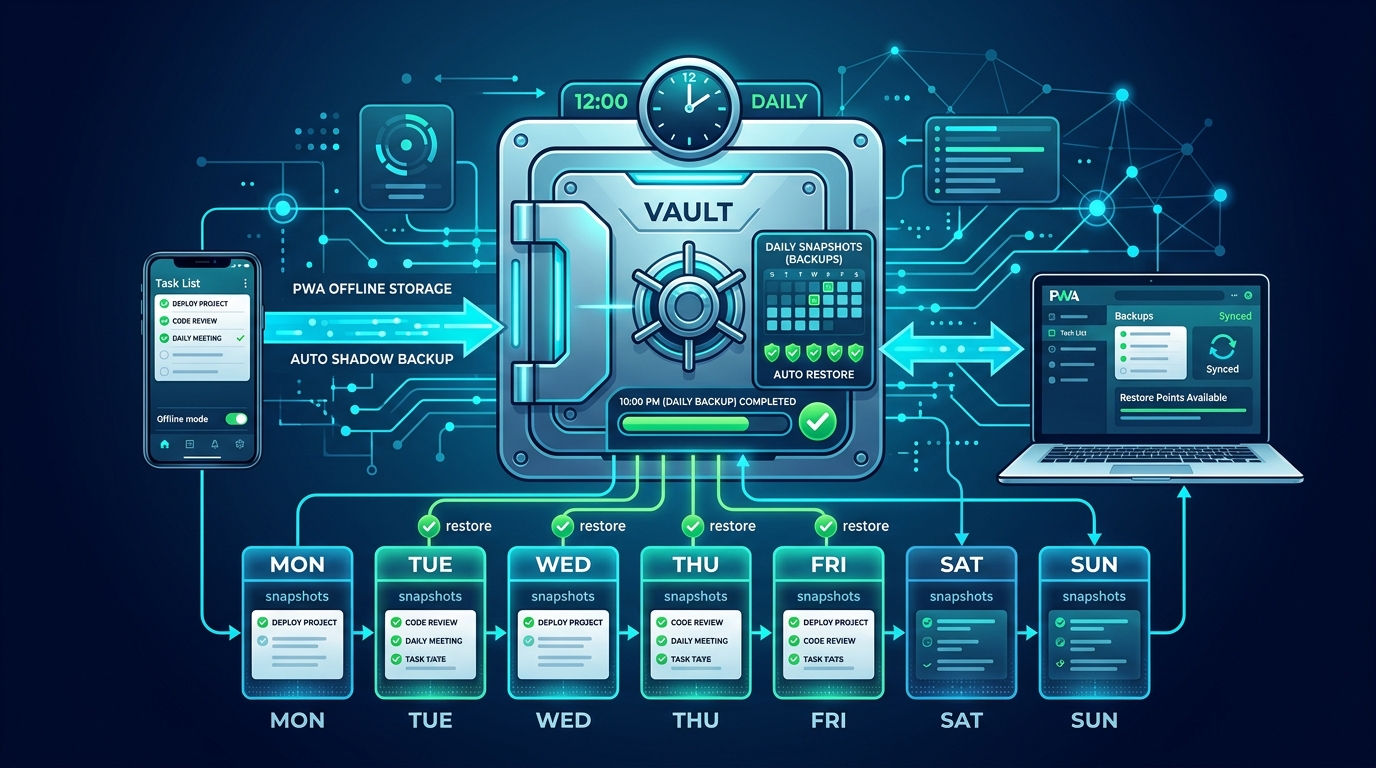
Data reliability is paramount. 123 ToDo combines real-time encrypted cloud sync with automatic daily shadow backups:
- Every 24 hours, your local state creates an automated shadow snapshot saved safely in browser storage.
- If you ever make an accidental mass deletion or switch devices offline, you can restore your complete workspace with a single click.
100% Offline PWA Freedom
123 ToDo is a full-featured Progressive Web App (PWA). It loads instantly without an internet connection, lets you add and edit tasks with zero latency, and silently syncs when you reconnect.
Dual-Skin Architecture: Tasks Matrix + Simple Voice Notes
Switch effortlessly between two operating skins:
- Task Manager Skin: Structured P1–P4 priority matrix (Must Do, Should Do, Could Do, On Hold) with subtask checklists and custom project colors.
- Simple Voice Notes Skin: Hands-free continuous dictation, large high-contrast text, unassigned inbox capture, and 1-tap task conversion — ideal for quick capture on the move.
Free to Use — Zero Subscriptions Required
No artificial task limits, no character caps, and no forced account signups. The core task and note manager is completely free.
2. Effortless 1-Click Migration from Other Apps
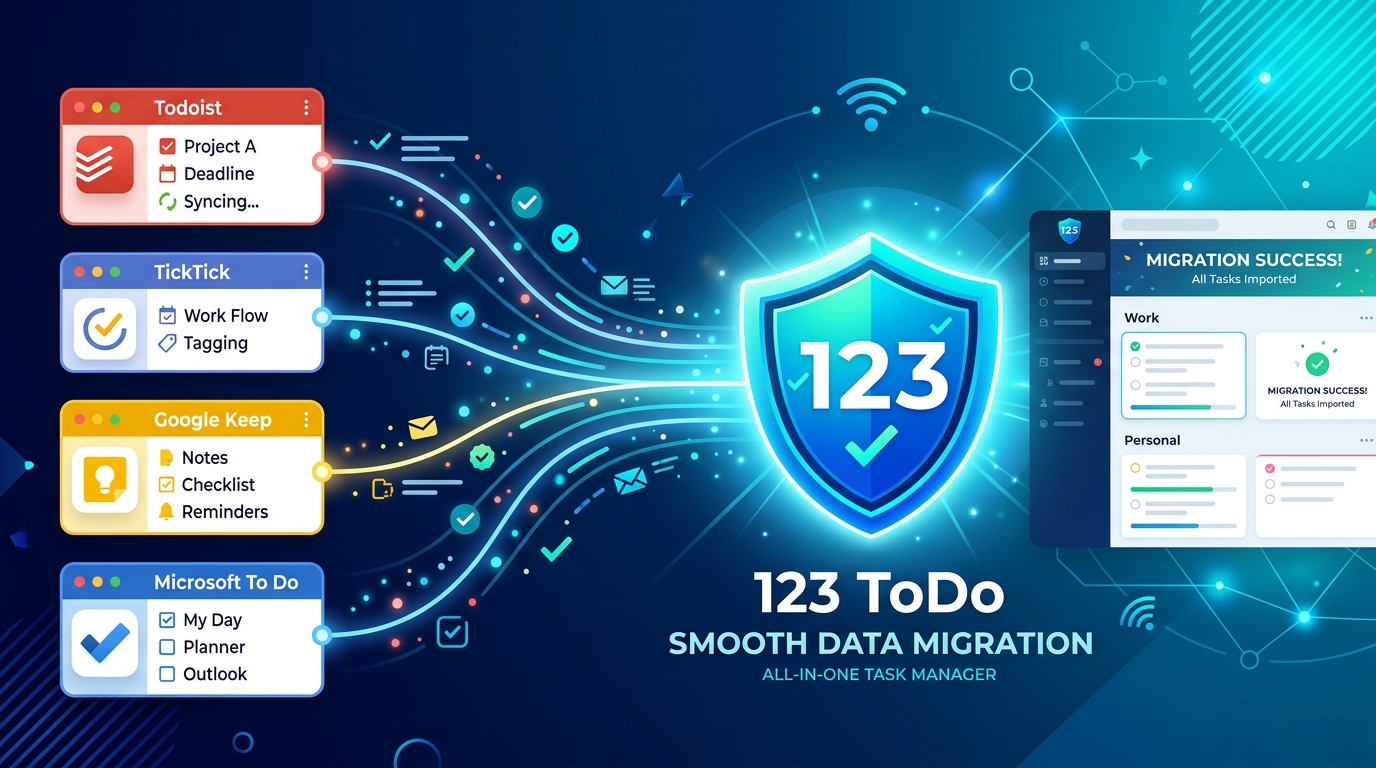
Moving your existing data to 123 ToDo takes less than a minute. Our new Universal Importer Wizard natively parses exports from all major competitors:
| Source App | Supported Export Format | What Gets Preserved |
|---|---|---|
| Todoist | Project Export CSV | Task Titles, Unlimited Notes, Priorities, Subtasks, Due Dates |
| TickTick | Backup CSV (TickTick-backup.csv) | Projects, P1-P4 Priorities, Task Descriptions, Due Dates |
| Google Keep | Takeout JSON files (.json) | Note Titles, Body Text, Checklists, Color Labels -> Projects |
| Google Tasks | Takeout Tasks.json | Task Lists, Due Dates, Notes, Parent/Child Subtasks |
| Microsoft To Do | Account Export CSV | Lists -> Projects, Importance -> Priorities, Notes, Due Dates |
3. Step-by-Step Migration Guide
How to Migrate in 3 Simple Steps:
Export Your Data from Your Current App:
- Todoist: Open a Project ➔ click
(...)➔ Export as CSV. - TickTick: Go to
Settings➔Backup & Export➔ Export Backup CSV. - Google Keep / Google Tasks: Visit
takeout.google.com➔ Select Keep or Tasks ➔ Create Export. - Microsoft To Do: Settings ➔ Export Account Data.
- Todoist: Open a Project ➔ click
Open the 123 ToDo Universal Importer:
- In 123 ToDo, click Import in the footer bar.
- Click Import from Other Apps.
- Select your source app tab (Todoist, TickTick, Google Keep, Google Tasks, MS To Do).
Drop Files & Confirm:
- Drag and drop your
.csvor.jsonfile(s) into the dropzone (or select multiple files at once). - Preview detected items, assign your target project, and click Confirm & Import.
- Your tasks and notes appear instantly!
- Drag and drop your
4. Zero Data Lock-In: Exporting Your Data Out of 123 ToDo Anytime
We believe true data ownership means you should never be trapped inside any application. If you ever decide to move your data out of 123 ToDo or transfer your task lists to another system, exporting is 100% free, instant, and unrestricted:
How to Export Your Data in 3 Clicks:
- Open 123 ToDo and click Settings ⚙️ (or Export in the footer bar).
- Click Export Backup Data.
- Save the resulting
.jsonfile to your computer or mobile device.
Your exported file contains 100% of your task items, subtask checklists, attached notes, project categories, priority assignments (P1–P4), and scheduled due dates in structured JSON format. You can keep this file as an offline backup or migrate it into other productivity tools whenever you choose.
Ready to Experience True Privacy & Freedom?
Say goodbye to privacy invasion, monthly fees, and app lock-in.
👉 Start using 123 ToDo for free at app.123todo.com and migrate your data in seconds!