· 123 ToDo Team · Announcements · 3 min read
Dual Encrypted Cloud Sync: Google Drive & 123ToDo Zero-Knowledge Engine
Keep your tasks backed up and synced seamlessly across all your devices using either 123ToDo Zero-Knowledge Cloud Sync (Cloudflare D1) or Google Drive AppData Sync.
Complete Privacy & Synchronization Choice
When we first built 123 ToDo, our mission was simple: deliver a fast, priority-based, offline-first task manager with zero compromise on user privacy.
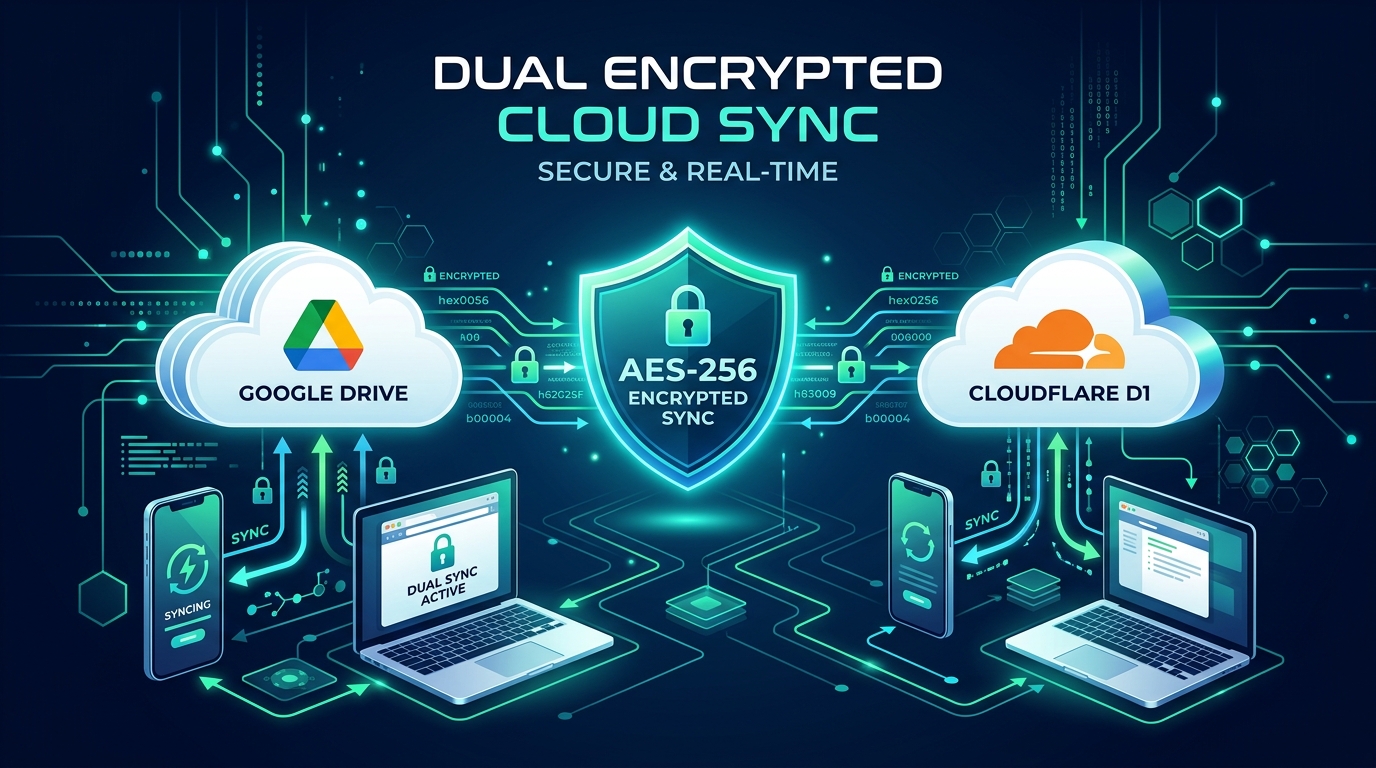
We originally introduced Google Drive AppData Sync as a privacy-first way to keep your tasks in sync without storing your personal data on third-party servers. Today, 123 ToDo offers a Dual-Engine Encrypted Cloud Sync Architecture:
- 123ToDo Cloud Sync (Default & Recommended) — Powered by Cloudflare D1 Serverless E2E Zero-Knowledge Encryption with instant 6-digit device pairing and zero session expiration drops.
- Google Drive AppData Sync — Client-side encrypted sync directly to your personal Google Drive hidden app container.
Here is a complete breakdown of both sync options, how they protect your data, and how to choose the best option for your workflow.
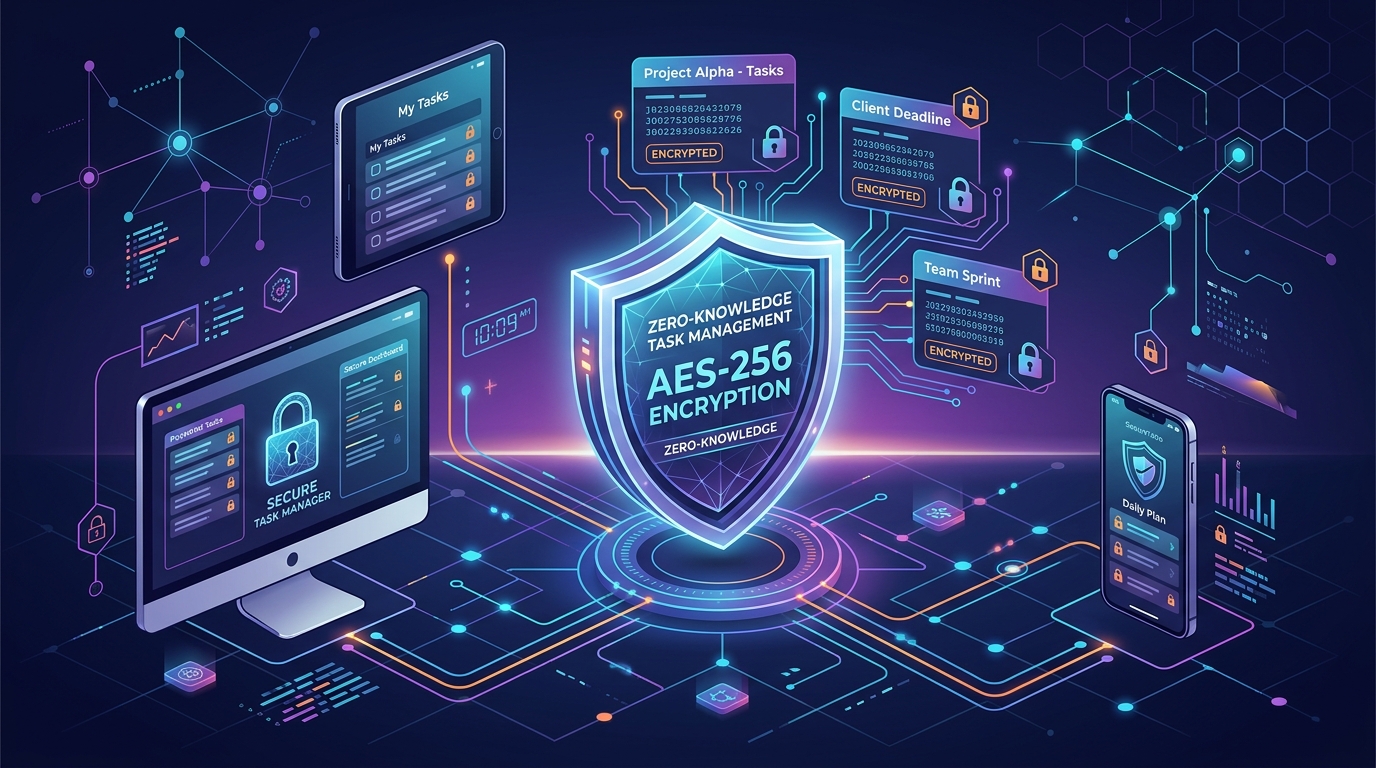
The Core Security Guarantee: AES-256-GCM Zero-Knowledge Encryption
Both sync engines share the exact same underlying security contract: Zero-Knowledge Client-Side Encryption.
Before any task title, note description, due date, or project category leaves your device:
- Your data is encrypted locally using browser-native AES-256-GCM encryption.
- Your master passphrase or secret pairing token derives a high-entropy 256-bit encryption key via PBKDF2.
- All payloads sent across the network or stored in the cloud are encrypted blobs.
- Neither 123 ToDo, Cloudflare, Google, nor any third party can read your tasks.
Option 1: 123ToDo Cloud Sync (Default & Recommended)
Powered by our global serverless infrastructure (Cloudflare D1 edge database), 123ToDo Cloud Sync was designed to eliminate third-party cloud OAuth friction:
Key Advantages of 123ToDo Cloud Sync:
- Set & Forget (Zero Session Expirations): Unlike Google OAuth tokens which can expire every 60 minutes or require re-authentication, 123ToDo Cloud Sync uses persistent cryptographic device tokens that stay connected indefinitely.
- 5-Second 6-Digit Device Pairing: Pair your iPhone, Android phone, iPad, or laptop instantly by entering a simple 6-digit pairing code generated on your primary device.
- Flawless iOS Safari PWA Support: Apple’s WebKit engine frequently clears third-party cookies and OAuth frames inside Standalone PWA Home Screen apps. 123ToDo Cloud Sync runs 100% natively in PWAs without login drops.
- Sub-Second Multi-Device Sync: Changes on your desktop sync to your mobile phone in under 500 milliseconds.
Option 2: Google Drive AppData Sync
For users who prefer keeping 100% of their cloud storage footprint within their personal Google Account ecosystem:
How Google Drive AppData Sync Works:
- Uses Google Identity Services (GIS) OAuth 2.0.
- Saves your encrypted task payload inside your personal Google Drive’s hidden
appDataFolder(a private folder invisible in normal Google Drive file browsing, accessible only by 123 ToDo). - Even if Google servers were inspected, your data remains encrypted with AES-256-GCM.
Feature Comparison Matrix
| Feature / Capability | 123ToDo Cloud Sync (Default) | Google Drive AppData Sync |
|---|---|---|
| Encryption Standard | AES-256-GCM Zero-Knowledge | AES-256-GCM Zero-Knowledge |
| Authentication Method | 6-Digit Device Pairing Code | Google OAuth 2.0 Sign-In |
| PWA & iOS Safari Stability | 100% Permanent Connection | Requires periodic re-auth |
| Device Setup Speed | ~5 Seconds | ~30 Seconds (Google Login) |
| Multi-Device Support | Unlimited Devices | Unlimited Devices |
| Data Ownership | End-to-End Encrypted Edge Store | Personal Google Drive AppData |
How to Switch or Set Up Sync in 123 ToDo
Setting up or changing your sync provider takes just a few taps:
- In 123 ToDo, tap the Sync Status button in the footer (or go to Settings ⚙️ ➔ Cloud Sync).
- Choose your preferred provider tab: 123ToDo Cloud Sync or Google Drive.
- For 123ToDo Cloud Sync: Click Generate Pairing Code on your main device, then enter the 6-digit code on your other devices.
- For Google Drive: Click Sign in with Google and grant permission to sync.
FAQs
Q: Can 123 ToDo read my tasks when using 123ToDo Cloud Sync? A: No. Your data is encrypted locally using AES-256-GCM before transmission. The server database only sees an opaque encrypted binary blob.
Q: Do I have to use Cloud Sync? A: Absolutely not. 123 ToDo works 100% offline as a local-only PWA. Syncing is an optional feature.
Q: Is there any cost for this feature? A: No, cloud sync is completely free for all users.